


How to Resolve Git Merge Conflicts: A Step-by-Step Guide | DCSoftTech
- Home
- How to Resolve Git Merge Conflicts: A Step-by-Step Guide | DCSoftTech




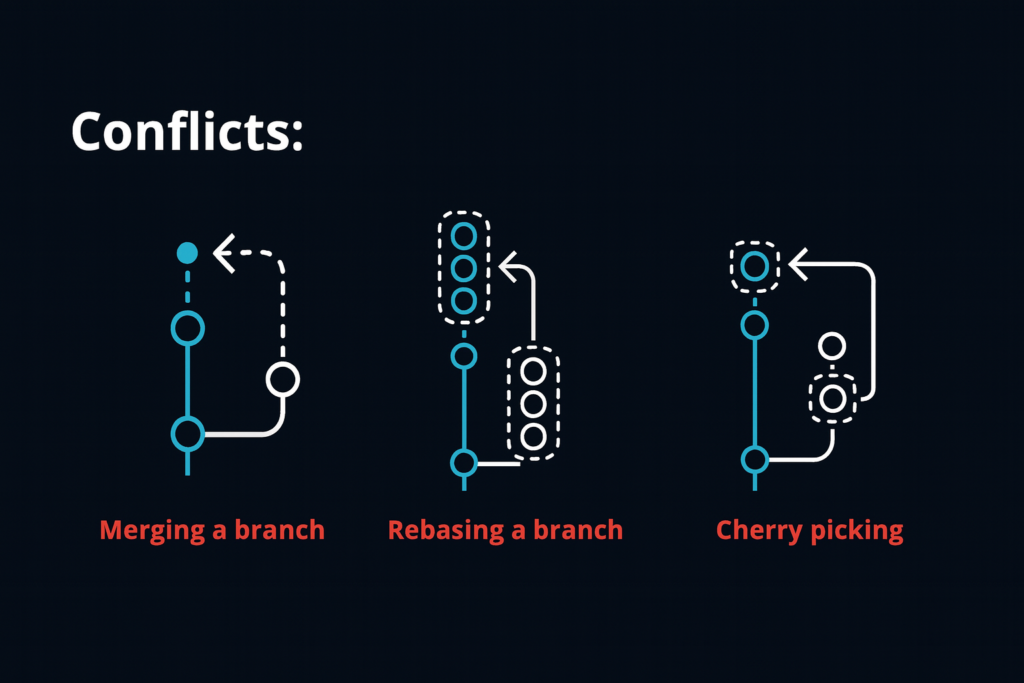
When working in teams with Git, source code conflicts (Merge Conflicts) are inevitable. Whether you are a beginner or an experienced developer, mastering how to resolve Git Merge Conflicts not only protects your codebase but also optimizes your workflow professionally.
This guide from DCSoftTech explains the core nature of Merge Conflicts and provides a step-by-step walkthrough to resolve them accurately.
A Git Merge Conflict occurs when Git cannot automatically merge changes from two different branches.
          C3 - C4 (Branch Feature)
         /
C1 - C2
         \
          C5 - C6 (Branch Main)
Editing the exact same line of code: Two developers modify the exact same line in the same file across two different branches.
Deleting a file undergoing edits: One branch deletes a file while another branch continues to modify it.
Out-of-sync branch merging: A local feature branch has not pulled the latest updates from the target branch (main/master) before creating a Pull Request (PR).
When a conflict occurs, Git pauses the merge process and marks the affected positions inside the files. You can manually resolve them in 4 steps:
Open your Terminal or Command Prompt in the project directory and run:
Bash
git status
Git will list all unresolved files under Unmerged paths (highlighted in red).
Open the affected file in your code editor (VS Code, WebStorm, etc.). You will see Git’s conflict markers:
Plaintext
<<<<<<< HEAD
// Current code on your active branch (Current Change)
console.log("Hello from DCSoftTech");
=======
// Code from the incoming branch (Incoming Change)
console.log("Welcome to DCSoftTech Studio");
>>>>>>> feature-branch
<<<<<<< HEAD: Marks the start of the code on your current active branch.
=======: The divider separating the two conflicting versions.
>>>>>>> [branch-name]: Marks the end of the code coming from the branch being merged.
How to fix:
Keep the correct code block or combine the required logic from both.
Remove all conflict markers (<<<<<<<, =======, >>>>>>>).
After modifying and saving the file, notify Git that the conflict has been resolved:
Bash
# Stage a specific file
git add <file-name>

# Or stage all resolved files
git add .
Create a commit to complete the conflict resolution:
Bash
git commit -m "Fix: Resolve merge conflict between main and feature branch"
If you prefer not to edit conflict markers manually, modern GUI tools provide streamlined visual diffing:
| Tool | Key Features | Best For |
| VS Code Built-in Editor | Intuitive inline actions (Accept Current, Accept Incoming, Accept Both) | Developers of all levels |
| GitKraken / Sourcetree | Clean graphical interface with intuitive visual branch management | Developers who prefer GUI tools |
| Meld / Beyond Compare | Dedicated 3-way merge and deep file comparison engines | Complex, large-scale conflict resolution |
If a conflict is too complex and you need to roll back to a safe state before attempting the merge again, execute the abort command:
Bash
git merge --abort
This command restores your local branch to its exact state prior to running git merge.
To keep workflows smooth and minimize conflicts, developers at DCSoftTech follow these core practices:
Pull and Rebase Frequently: Regularly pull updates from the main branch into your feature branch using git pull origin main or git rebase main.
Keep Tasks and Commits Small: Avoid long-lived feature branches. Once a feature is complete, submit a PR and merge it promptly.
Communicate Across the Team: Inform teammates whenever you alter project folder structures or shared configuration files (e.g., package.json, .env).