


How to Rename Multiple Files in Batch Using Python: A Complete Guide
- Home
- How to Rename Multiple Files in Batch Using Python: A Complete Guide




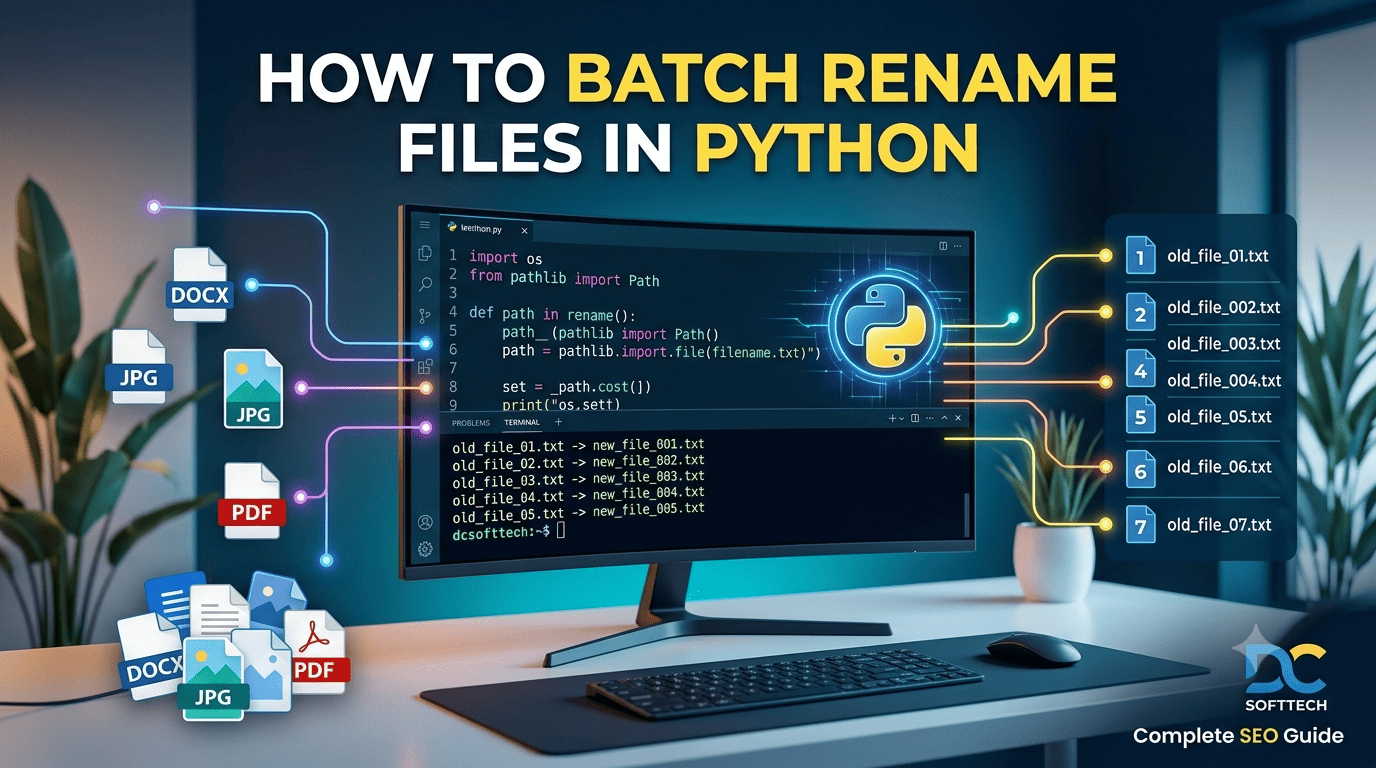
In data processing, document management, or daily system operations, manually renaming tens or hundreds of files is not only time-consuming but also prone to human error. With Python, you can automate this repetitive task accurately and flexibly in just a few lines of clean code.
In this guide, DC SoftTech will show you how to batch rename files using Python—ranging from basic operations to advanced real-world scenarios.
To work with files and directories, Python provides two powerful built-in libraries that require no additional installation:
os: A classic library featuring os.rename() and os.listdir() for direct operating system interactions.
pathlib: A modern object-oriented filesystem path library (introduced in Python 3.4+). It makes code much cleaner, more readable, and cross-platform compatible across Windows, macOS, and Linux.
Useful when you need to tag file statuses (e.g., adding draft_ to the beginning or _v1 to the end of filenames).
Python
from pathlib import Path

# Path to the target directory
folder_path = Path("./documents")

# Add the "backup_" prefix to all .txt files
for file_path in folder_path.glob("*.txt"):
    if file_path.is_file():
        new_name = f"backup_{file_path.name}"
        file_path.rename(folder_path / new_name)

print("Prefix added successfully!")
Ideal for organizing product images, invoices, or dataset inputs for AI/Machine Learning models into a standardized format like image_001.png, image_002.png.
Python
from pathlib import Path

folder_path = Path("./images")

# Retrieve and sort png image files
files = sorted([f for f in folder_path.glob("*.png") if f.is_file()])

for index, file_path in enumerate(files, start=1):
    # Format index with 3 zero-padded digits (001, 002, ...)
    new_name = f"product_{index:03d}{file_path.suffix}"
    file_path.rename(folder_path / new_name)

print(f"Successfully renamed {len(files)} files!")
Best for fixing bulk typos or replacing characters (e.g., swapping spaces with underscores _ for better filesystem compatibility).
Python
import os

folder_path = "./reports"

for filename in os.listdir(folder_path):
    old_file_path = os.path.join(folder_path, filename)

    if os.path.isfile(old_file_path):
        # Replace spaces with underscores and convert to lowercase
        new_filename = filename.replace(" ", "_").lower()
        new_file_path = os.path.join(folder_path, new_filename)

        os.rename(old_file_path, new_file_path)

print("File names standardized successfully!")
For complex pattern matching (e.g., reformatting date strings or removing special characters), combining Python’s re module with file operations is the ultimate solution.
Python
import re
from pathlib import Path

folder_path = Path("./data")

# Pattern to find files formatted as YYYY-MM-DD_name.csv
pattern = re.compile(r"^(\d{4})-(\d{2})-(\d{2})_(.*)\.csv$")

for file_path in folder_path.glob("*.csv"):
    match = pattern.match(file_path.name)
    if match:
        year, month, day, rest = match.groups()
        # Reformat to DD-MM-YYYY_name.csv
        new_name = f"{day}-{month}-{year}_{rest}.csv"
        file_path.rename(folder_path / new_name)

print("Regex renaming complete!")
When running file automation scripts, always follow these safety practices:
Always Back Up Your Data: Create a duplicate copy of your target directory before running any script.
Use a Dry-Run Mode First: Replace file_path.rename() with print() statements to preview old versus new filenames before executing changes.
Handle Overwrite Risks: Check if the new filename already exists using new_path.exists() to prevent accidental file overwriting.
Dry-Run Quick Tip:
Python
# Instead of immediately executing: file_path.rename(new_path)
print(f"[DRY-RUN] {file_path.name}  --->  {new_name}")
Automating file renaming with Python saves hours of manual work and optimizes data workflows for modern businesses. We hope this step-by-step guide from DC SoftTech helps you seamlessly implement Python file automation in your daily projects.
Looking for custom Robotic Process Automation (RPA) solutions, custom software development, or IT system optimization? Contact DC SoftTech today for expert technical consultation!