


Mastering git init: Essential Commands and Best Practices for Developers
- Home
- Mastering git init: Essential Commands and Best Practices for Developers




When starting a new software project, the first and most critical step in managing your source code is setting up a Version Control System. Within the Git ecosystem, the git init command is the key that unlocks that journey.
This guide breaks down what git init is, how to use it step by step, and what actually happens under the hood when you run it.
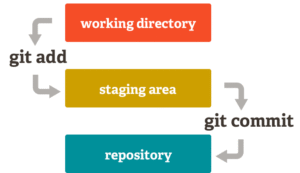
Git workflow and local repository architecture. Nguồn: Medium
git init?git init is a Git command used to create a new Git repository or convert an existing, unversioned directory into a Git repository.
When you execute this command, Git creates a hidden subdirectory named .git inside your project’s root folder. This directory contains all the metadata, commit history, branches, and configuration files Git needs to track every change made to your codebase.
.git Directory?Running git init does not just create an empty folder—it scaffolds a complete internal structure that powers version control:
HEAD: A file that points to the current branch you are actively working on.
config: Stores repository-specific configuration settings (such as remote URLs, branch tracking, and local user preferences).
objects/: The object database that stores all file contents, trees, and commits compressed and indexed by SHA hashes.
refs/: A directory storing pointers to commit objects, including local branches (heads), remote branches (remotes), and tags (tags).
hooks/: Contains sample client-side or server-side scripts that trigger automatically on specific Git events (such as pre-commit or pre-push).
git initNavigate to your project directory—or create a new one from scratch:
mkdir my-project
cd my-project
Execute git init inside the root folder of your project:
git init
Expected terminal output:
Initialized empty Git repository in /path/to/my-project/.git/
Confirm that Git is actively tracking the directory by checking its status:
git status
git initCreate an empty directory, initialize Git, add your initial files, and make your first commit:
git init
touch index.html style.css
git add .
git commit -m "Initial commit"
If you already have source code in a local folder and want to bring it under Git version control:
cd /path/to/existing-project
git init
git add .
git commit -m "Add existing project files"
Modern Git workflows commonly use main instead of master as the primary branch. You can specify this directly during initialization:
git init -b main
Avoid Nested Repositories: Do not run git init inside a folder that is already tracked by another Git repository (unless you intentionally intend to use Git Submodules), as nested .git directories can cause tracking conflicts.
Viewing Hidden Files: Because .git starts with a dot, operating systems hide it by default. On Windows, enable Hidden items in File Explorer; on macOS or Linux, run ls -la in your terminal to inspect it.
Connecting to a Remote Repository: git init only sets up a local repository on your machine. To back up your code or collaborate with a team on GitHub, GitLab, or Bitbucket, link a remote origin and push your initial branch:
git remote add origin <your-repository-url>
git branch -M main
git push -u origin main
The git init command is a simple yet foundational step for every software engineering project at DCSoftTech. Understanding how it initializes and structures your repository ensures clean source control right from your very first line of code. Stay tuned for the next installments in the DCSoftTech Git series to master branching, staging, and remote workflows.