


Stop Committing Blindly: Master git status and Short Flags (-s)
- Home
- Stop Committing Blindly: Master git status and Short Flags (-s)




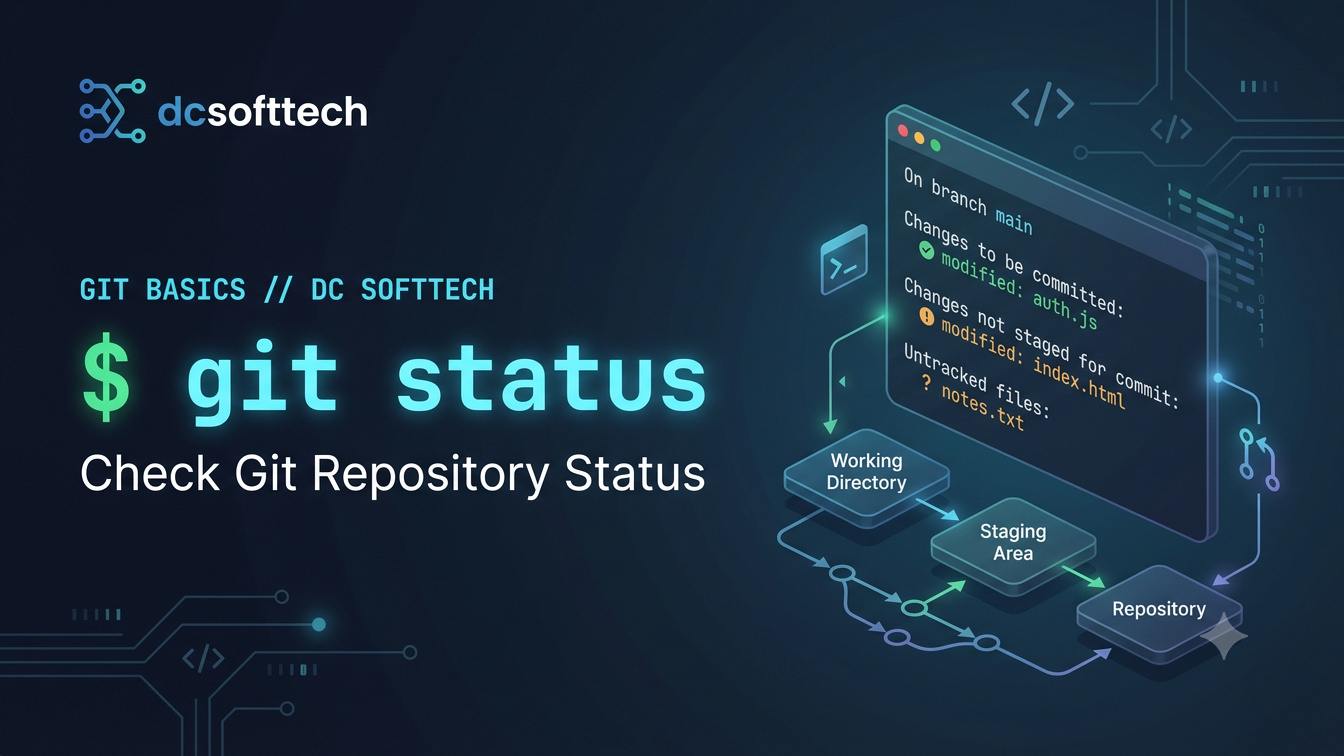
In daily software development with Git, git status is the command you should run most frequently. It gives you an immediate snapshot of which files have been modified, which changes are staged for the next commit, and which files remain untracked by Git.
A key advantage of git status is that it is strictly read-only—it never modifies your code, switches branches, or alters your commit history.
git status Reads Your WorkspaceGit divides your local workflow into three primary areas:
Working directory: Where you directly edit, create, or delete files on your machine.
Staging area (Index): Where selected changes live after running git add, waiting to be included in the next commit.
Repository: Where Git permanently stores committed snapshots of your project.
When you execute git status, Git compares the Working directory, the Staging area, and the current commit (HEAD) to report any differences.
git status OutputA typical git status output is organized into four distinct sections:
On branch feature/login
Your branch is up to date with 'origin/feature/login'.

Changes to be committed:
  (use "git restore --staged <file>..." to unstage)
	modified:   src/auth.js
	new file:    src/login.css

Changes not staged for commit:
  (use "git add <file>..." to update what will be committed)
  (use "git restore <file>..." to discard changes)
	modified:   src/app.js

Untracked files:
  (use "git add <file>..." to include in what will be committed)
	notes.txt
On branch feature/login: Confirms the active branch you are currently working on.
Your branch is up to date with 'origin/feature/login': Indicates that your local branch matches the remote tracking branch (or shows whether your branch is ahead or behind by a specific number of commits).
Changes to be committed (Staged)Files listed here have already been added via git add. Running git commit will record only the changes in this section into the new commit.
Changes not staged for commit (Modified, Unstaged)These files are already tracked by Git and have been edited in your working directory, but the latest edits have not been added to the staging area yet. If a single file appears under both Changes to be committed and Changes not staged for commit, it means you staged an earlier version of the file and then modified it again afterward.
Untracked filesNewly created files that Git has never tracked and that are not excluded by .gitignore. Git ignores these files during a commit until you explicitly stage them with git add.
git status Flags| Command | Purpose | Best Used When |
git status |
Displays full status details along with helpful command hints | Checking full context during everyday coding |
git status -s or --short |
Outputs a compact, single-line summary per file using status codes | Scanning repositories with many modified files |
git status -b |
Combines short output with current branch tracking info | Viewing both branch status and file changes quickly |
git status --ignored |
Lists files and folders ignored by .gitignore |
Debugging build artifacts, logs, or hidden config files |
-s) Status CodesIn short mode, each line begins with two status columns: the left column represents the Staging area, and the right column represents the Working directory:
??: Untracked file.
A : New file staged for commit.
M : Modified file staged for commit.
M: Modified file in the working directory, not yet staged.
MM: File staged with earlier changes, then modified again in the working directory.
D : Deleted file staged for commit.
git statusRun it before and after git add: Check before staging to avoid accidentally adding temporary files, logs, or local environment configs; check after staging to verify that every intended change is properly included.
Run it before git commit or git checkout: Ensure you have not left newly created files behind in Untracked files and confirm you are working on the right branch before committing.
Pair it with .gitignore: Whenever directories like node_modules/, dist/, or .env repeatedly appear under Untracked files, add them to .gitignore to keep your status output clean and focused.